By default Student Photo consent is not enabled when authorising School data to be transferred to SchoolWorkSpace via Groupcall Xporter.
To enable this consent your school Data Manager can login to Groupcall Xporter and enable it from there.
The easiest way to do this is hopefully set out here.
1) Visit xporter.uk
2) Click Login at the top and use your Groupcall username and password.
3) Once logged into manage.groupcall.com click on Data Sharing Dashboard
4) Scroll down until you find the SchoolWorkSpace Tile
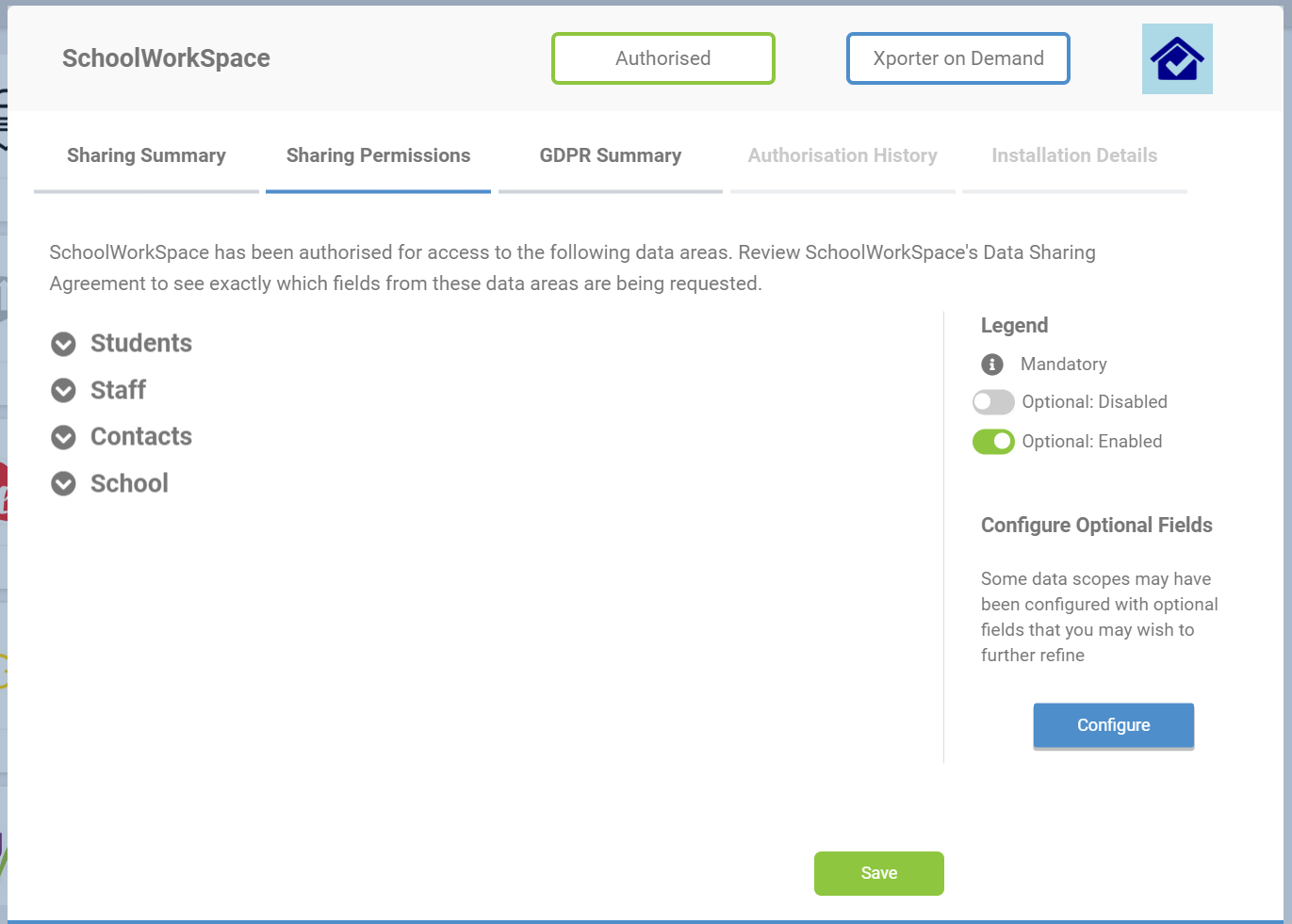
5) Click on the SchoolWorkSpace tile then in the popup select the second tab "Sharing Permissions"
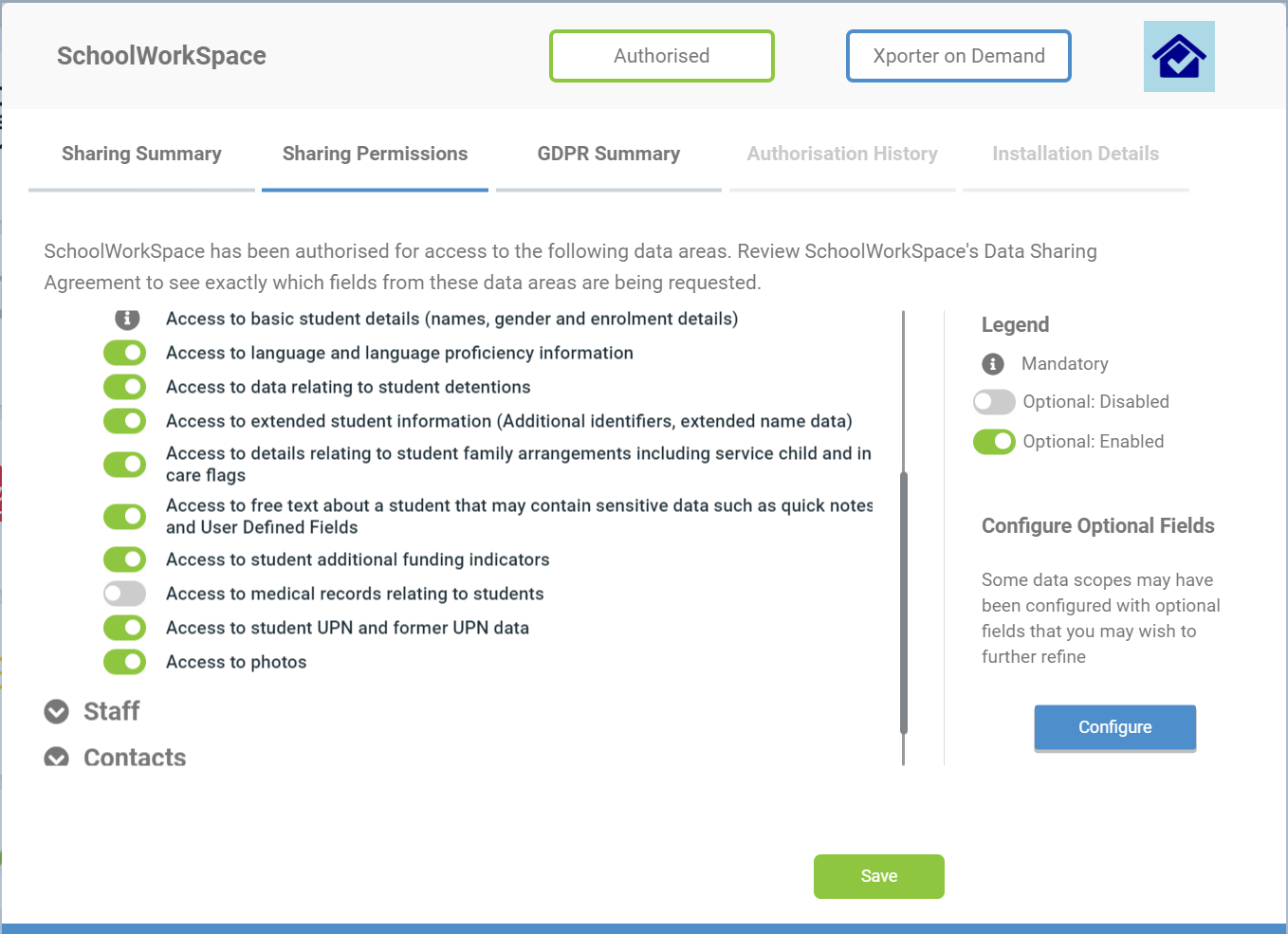
6) Open up Students and scroll down until you find Photos near the bottom of the section.
7) Toggle "Access to photos" to on
8) Click the green Save Icon
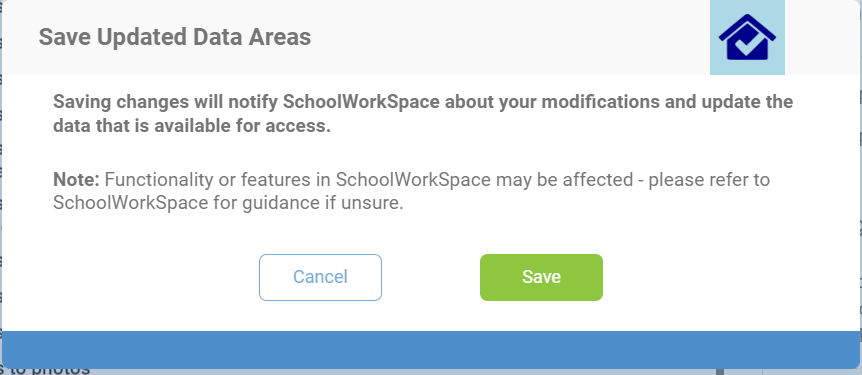
9) Confirm the save
In Groupcall Xporter the photo size of student and staff avatars is set by default to 100x100 pixels. This keeps the size nice and small and is good enough for a web page to help identify the pupil. However if you are printing then you may want to tweak your Xporter settings to increase the resolution of these pictures.
To do this in the Xporter Management Console set a token called "PhotoSize" to 200.
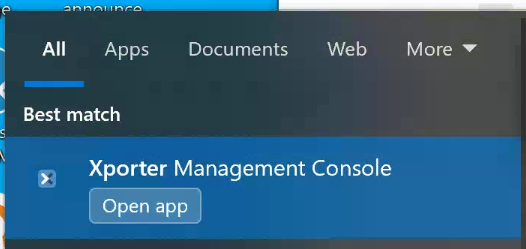
1) On your server running Xporter find the "Xporter Management Console".
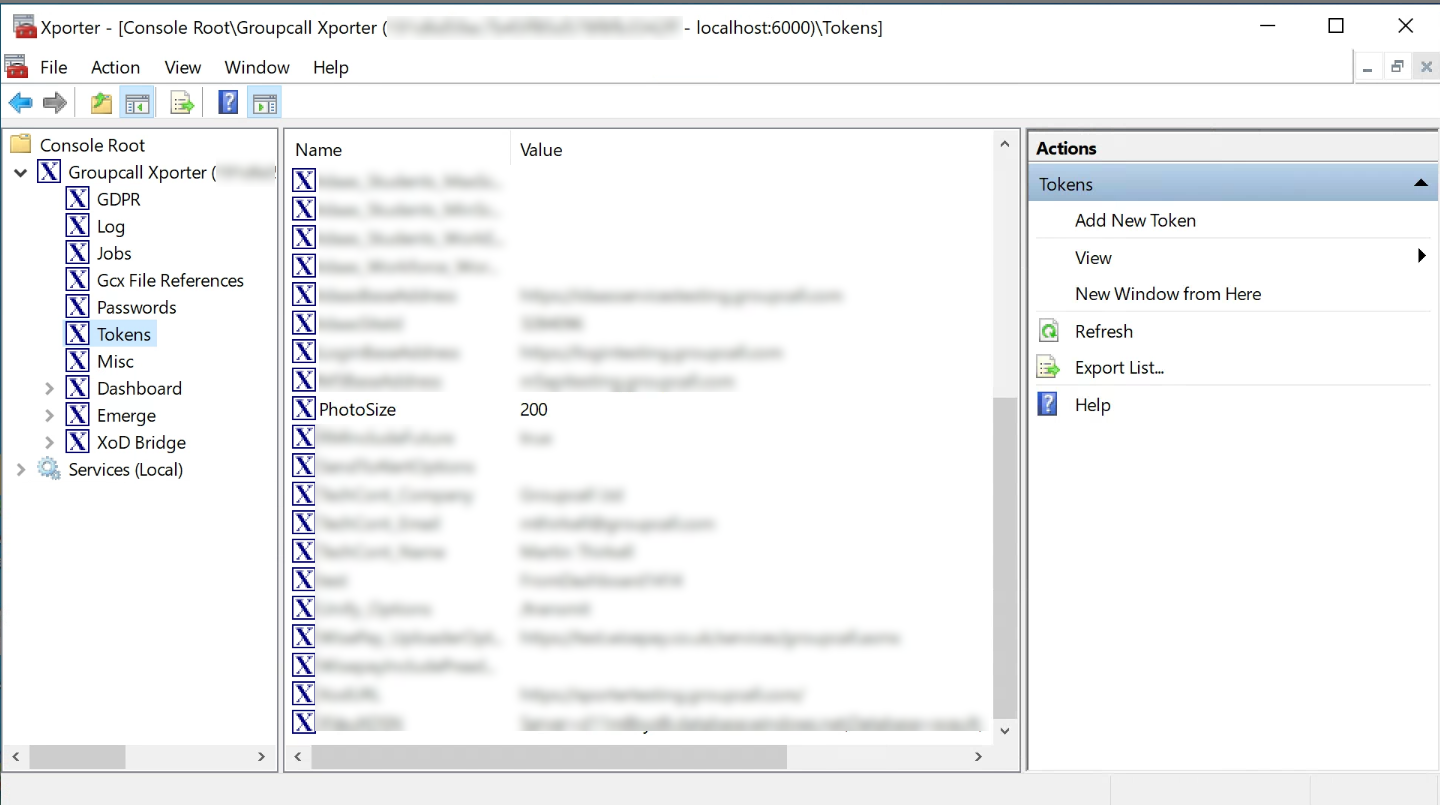
2) In your Xporter Management Console - open the Tokens section and look for a token "PhotoSize"
3) If found select it and Modify this token, if not found then click Add New Token.
4) Set this token to the 200 to increase the resolution of the photos to 200x200. You can possibly push it a bit higher than this (upto 300?) but image sizes will be increased and you risk out of memory errors.
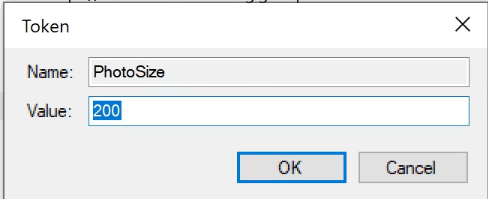
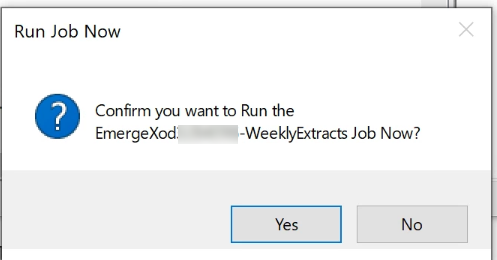
5) Xporter only extracts the photos once a week on a Sunday night / Monday morning when the Weekly job runs (to save processing). You after changing the PhotoSize tken you will need to manually run the Weekly Job. Don't do this during a busy time at school as it will stress your SIMSs server, and block your Xporter running other jobs possibly preventing people taking attendance etc. In the Xporter management console click on the Jobs section and find your "EmergeXod[schoolcode]-WeeklyExtracts and right click "Run Job Now". This can take an hour or more to run as it an multiple other jobs get fired off.
6) After Xporter has completed your SchoolWorkSpace data sync should automatically be triggered and should pull in the updated photos.

 Exams Assist